Creating a Shortcut
Last updated: August 20, 2025
Shortcuts in Zams make it easier to handle repetitive tasks. Instead of entering the same commands or connecting to multiple apps each time, you can create a shortcut that runs a predefined sequence of actions in one step.
Shortcuts also help organize complex workflows by grouping prompts, app calls, and database queries under a single command.
Prerequisites
There are no prerequisites for this tutorial.
Steps
Step 1: Open Shortcuts
Inside your agent, go to the Config tab.
Click the Shortcuts tab to see your available shortcuts.
Step 2: Add a New Shortcut
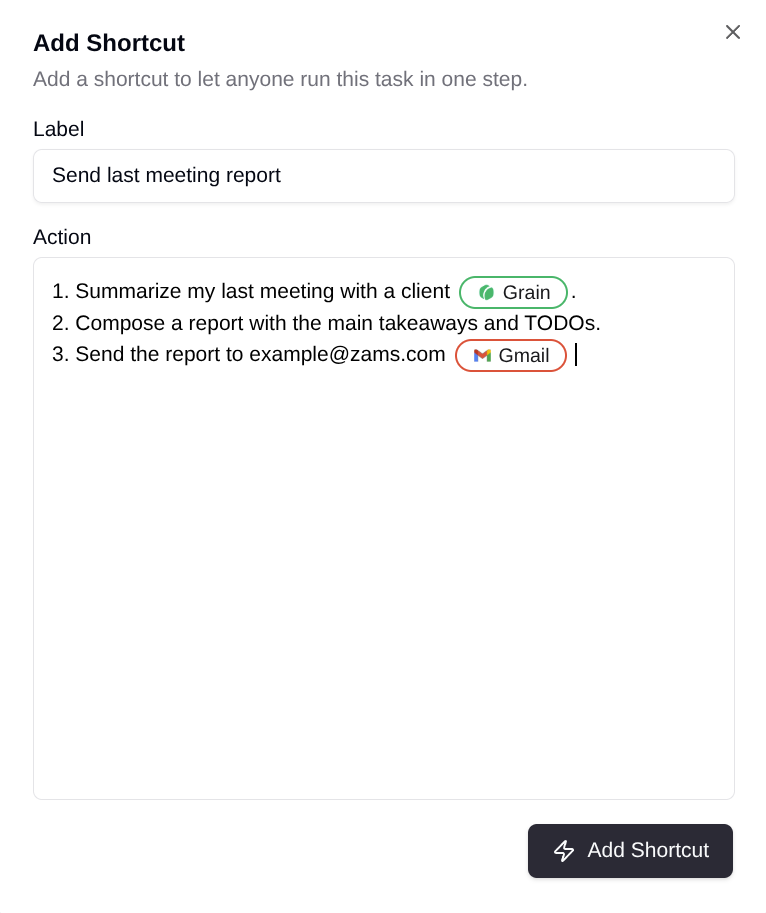
Click Add Shortcut.
In Label, enter a name that describes what the shortcut does.
Example:
Send last meeting report.
Step 3: Define Actions
In the Action field, enter the sequence of steps you want the shortcut to perform.
Always use tags (`@`) to reference integrations, apps, or database connections (e.g.
@Gmail,@Sales Database,@List Users).
Example: